

Coach onboarding
Welcome to Beoflow, coach.
Everything you need to set up your coach account, get your athletes in, bring in your programs and read what their bodies are telling you.
Get started in minutes
Four steps take you from an empty account to a first week of training on an athlete's phone.
Log in to the web app
Coaching happens at web.beoflow.com. Your athletes use the Beoflow app on their phone and never need the web app.
Add your athletes
Open Access, press Invite and choose An athlete. Each athlete gets an email; tapping it opens the Beoflow app, where they create their account and accept your request. During onboarding the app asks them to connect their wearables: Garmin, Apple Health (Apple Watch), Google Health Connect, Whoop, Oura, Polar, Wahoo, Fitbit, Strava, Zwift, COROS, Suunto, Withings or Eight Sleep. Beoflow automatically syncs some of their past data to draw a baseline of their biometric state straight away, so they can get started from day one.
Bring in your programs, or build new ones
Already have your training in a spreadsheet, a PDF or on paper? Give it to Flow and it turns it into real Beoflow sessions (here's how). Or build from scratch with the workout builder and the program tools: create a program in Programs, or write sessions straight onto an athlete's calendar.
Put it on their calendars
Assign a program to your athletes, or add sessions straight to an athlete's calendar. They show up in the athlete's app the next time they open or refresh their calendar.
All five tutorials are on the planning tutorials page.
Bring your existing programs into Flow
You've already written years of training. Don't rebuild it. Give Flow the spreadsheet, the PDF or a screenshot, and it turns it into real Beoflow sessions you can edit, reuse and assign.
What Flow can read
- Spreadsheets: Excel (.xlsx) or CSV. Using Google Sheets? Download it as .xlsx or .csv first.
- Documents: a PDF of your program.
- Screenshots and photos: a screenshot of a training app, or a photo of a printed or handwritten plan.
- Plain text: paste it straight into the chat.
- Voice: use the voice feature and just say exactly what you want and when you want it.
Import a program
Open Flow on your own account
In the web app, make sure you're viewing yourself, not an athlete, and open Flow. Programs live on your account, so this is where Flow can create one.
Attach the file and say what it is
Drop in the file and give Flow a line of context.
Example
This is my 12-week HYROX block. Make it a program called "HYROX 12 week". Zone 2 means 135 to 150 bpm.
If your sheet uses your own shorthand for zones or paces, say what it means, or Flow will ask rather than guess.
Flow copies it in as written
Flow creates the program and writes your sessions exactly as you wrote them: exercises, sets, reps, loads and targets. It works through up to eight weeks at a time, then shows you what it added and asks before carrying on.
Check it
Open the program in Programs and check a few sessions in the builder. Fix anything it misread, the same way you'd edit any workout.
Assign it
Use Assign athlete to put the program on each athlete's calendar. The sessions show up in their app, and any change you make to the program later flows down to everyone on it.
Import straight onto one athlete
Already have a plan written for one athlete? Select that athlete, open Flow and attach it. Flow writes the sessions onto their calendar as given, and they appear in the athlete's app.
Then let Flow help with the rest
Once your programs are in, ask Flow anything about an athlete, such as why their recovery dropped or whether they can handle Thursday's intervals. When sickness or travel gets in the way, ask it to move or rebuild that week's sessions.
Your athletes
Team is where you keep an eye on everyone you coach. Access is where you invite them and manage who sees what.
Add an athlete
Open Access, press Invite and choose An athlete. They accept in the Beoflow app under Manage Access, and from then on you see their training, sleep and recovery data alongside the plan you wrote. Athletes you sponsor with a seat don't pay for their own account.
Group your athletes
Put athletes into groups by squad, event or training block, from Access → Manage groups. Once you have more than one group, a group filter at the top of Team lets you look at one group at a time.
Team
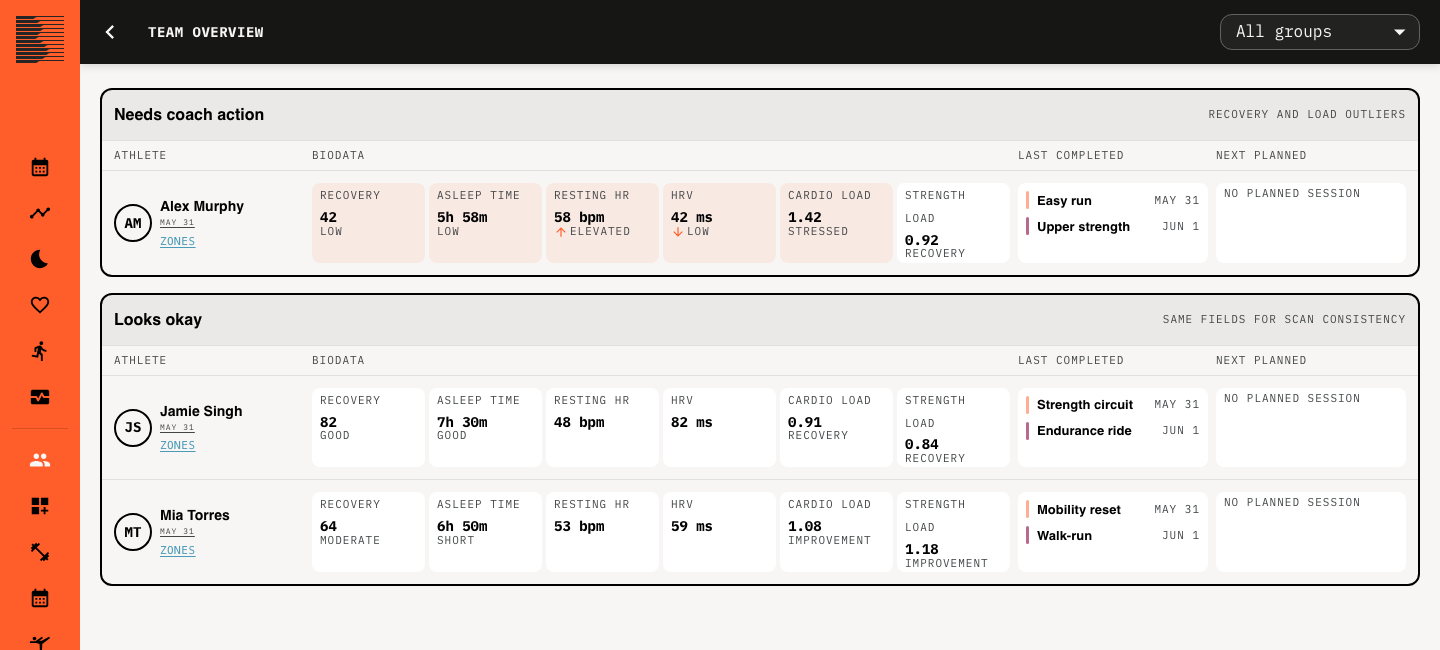
The overview splits your roster into Needs coach action, Looks okay and Awaiting data access. Each row shows recovery, asleep time, resting heart rate, HRV, cardio load and strength load, plus the last completed session and the next planned one, so you start the day with the athletes who need you.
Athlete settings and zones
Each athlete has their own training zones. Beoflow detects them from the athlete's data (maximum heart rate from their sessions, resting heart rate from their sleep), and you can set them from thresholds instead. Open them from the Zones button on the athlete's row in Team, or from Training zones in the sidebar.
Workouts
Workouts is your library. Build a session once, then reuse it across athletes and programs.
Build a workout
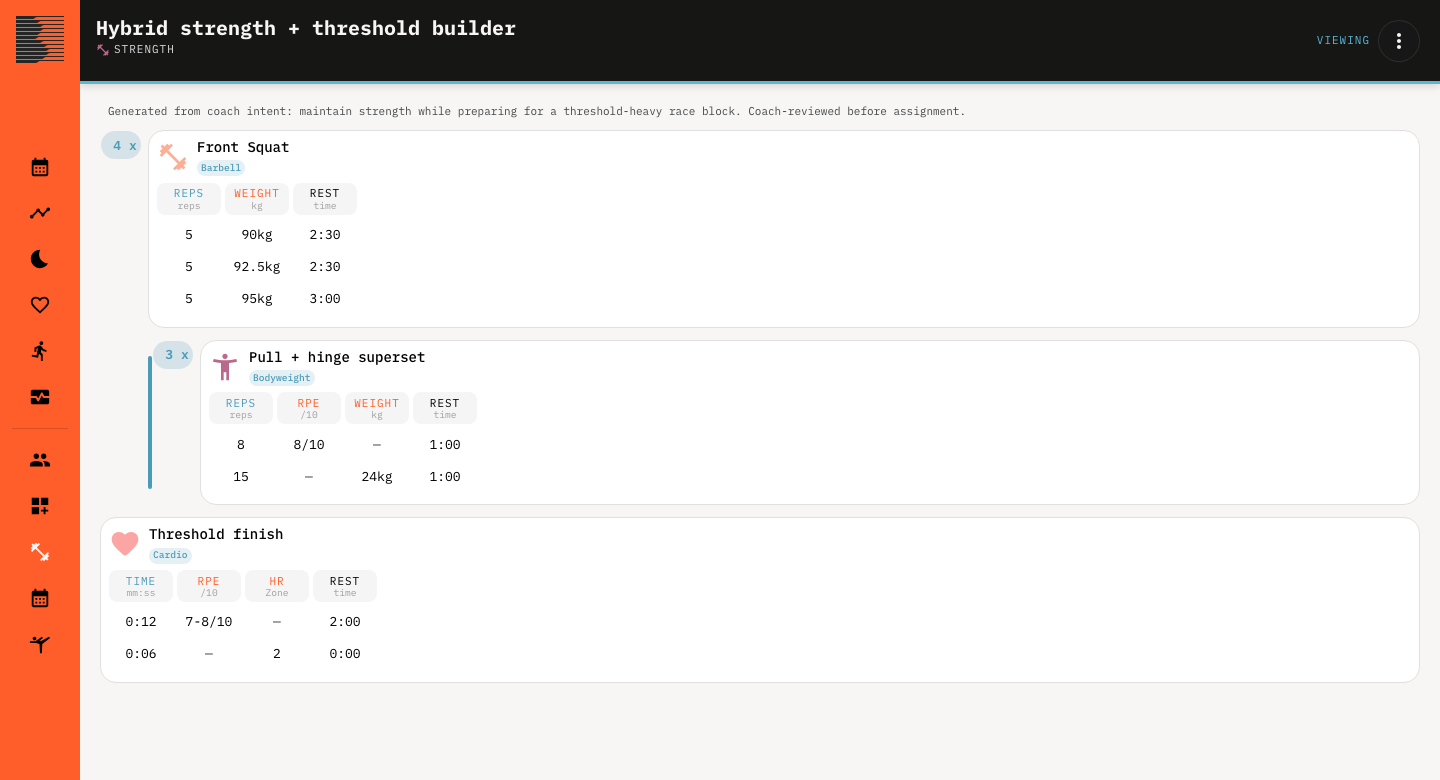
Add exercises with sets and a duration (reps, time, distance or laps), and set targets such as weight, RPE, heart rate zone, power zone or pace zone. Group exercises into supersets and rounds. Save any workout as a template.
Tutorial: how to build a workout.
Custom exercises
Under Exercises, press Add custom exercise to add your own movement with a description, the equipment and muscles it uses, and an uploaded video or image.
Send it to the watch
Planned workouts show up in the athlete's Beoflow app. Athletes on Garmin or Wahoo can open a planned workout in the app and tap Send to Garmin or Send to Wahoo. Wahoo takes endurance sessions only.
Programs and calendars
Training in Beoflow lives in two places, and they belong to different people. Here is how they compare, and how a change travels between them.
| Program | Calendar | |
|---|---|---|
| Who owns it | The coach. | The athlete. Every athlete has one. |
| Who can edit it | You, and any coach you invite from Access → Invite to help manage and edit your programs. | The athlete and you. A colleague the athlete approves with view-and-edit access can too. |
| What it's for | A block of training you plan to give to lots of athletes (and then tweak per athlete if you need to). | What the athlete actually does: the sessions they see in the app, with completed sessions next to what was planned. |
| How many | As many as you like, each assigned to as many athletes as you like. | One per athlete. |
| How you build it | Open Programs and create one. Fill it from its own calendar: pull in templates, build sessions on the day, copy whole weeks. | Pull sessions in from your template library or build one on the day. Drag or duplicate a session, copy and paste a session, a day or a date range, or copy them onto another athlete's calendar or into a program. |
| How it reaches the athlete | Assign athlete puts its sessions on each athlete's calendar. | Sessions show up in the athlete's app the next time they open or refresh their calendar. |
| When you make a change | A change to the program goes to every athlete on that program. | You can change anything on an athlete's calendar without it reaching anyone else (even if that calendar was inherited from a program). The change never flows up the chain to the program. |
| Periodization planning | A periodization can be assigned to a program, and is inherited by all the athletes on that program. | Inherited from a program, then edited per athlete on the Periodization tab. Or set one up there from scratch for one athlete: add peak moments (a race, time trial, fitness test or other event, each with an A, B or C priority), add your phases, then generate the periodization onto the calendar. |
| What the athlete adds | Nothing: the program is yours. | What they have on: work, school, travel, events. It's their place to tell you what the plan has to work around, so you can see it before you write the week. |
A coach owns a program, HYROX 12 week, assigned to Athletes 1, 2 and 3. Changes to the program flow down to each of their calendars. Athlete 3's calendar was edited: that edit stays on Athlete 3's calendar and never flows back up to the program or across to the other athletes. Separately, the coach writes sessions straight onto Athlete 4's calendar with no program.
Video walkthroughs of building a program and the periodisation timeline are on the planning tutorials page.
Reading the data
Beoflow turns wearable data into a short list of reads. Every number is compared with the athlete's own baseline, never with someone else's. Start with recovery and load; go deeper only when something looks off.
- Recovery score0 to 100
- One score built from sleep, HRV, overnight resting heart rate and breathing, and recent training load, each compared with the athlete's own baseline. Read it as a forecast of how well they can perform today.
- Resting heart rateHRVRespirationEach athlete's own baseline
- Beoflow learns each athlete's unique baselines for resting heart rate, heart rate variability and respiration: what's normal for that person. When something starts to look irregular, it flags it, so you can spot when things are going wrong. Overnight resting heart rate, breathing rate and temperature also feed Beoflow's illness signal, which warns you early and then flags when illness looks likely.
- Autonomic statusOne dot per night
- Plots tone against volatility from the athlete's HRV. The four quadrants are Adapting, Primed, Under pressure and Overreaching. Watch the direction the dots travel, not a single night.
- Strength loadMuscular stress
- Built from power data, heart rate data where needed, and the reps and sets logged in the gym. That gives an accurate picture of the direct muscular stress on the athlete's body, and it feeds the combined load.
- Cardio loadMetabolic stress
- Calculated from power and heart rate data. It shows the total metabolic stress on the athlete's system as a training load, and it feeds the combined load.
- Combined load ratioStrength and cardio
- Marries the two loads above into one number for the total load on the body (not just metabolic), and expresses how hard the athlete is training against what they are used to. Above 1.0 they are training above their current fitness, so they are building fitness and capacity. Below 1.0 they are losing fitness and capacity. In practice 0.8 to 1.3 is the healthy range; above 1.3 they are straining, and above 1.5 injury risk climbs.
- Load risk0 to 30
- How the load is building, not just how much there is. It adds up load level, load change and load spike, each scored 0 to 10. When it climbs, change the session, not just the intensity.
- Check-ins and RPEThe athlete's own report
- Athletes fill in a morning check-in and rate each session's RPE in the app, and both sit next to the device data. When the athlete and the watch disagree, ask the athlete.
The four alarms
Most days the data just confirms the plan. Act straight away on these four:
- Beoflow's early illness warning.
- Illness that has arrived.
- The athlete telling you something is wrong in their check-in.
- Resting heart rate well above their baseline. Beoflow flags it the first night; act if it stays there.
The free coach course covers every one of these reads in short lessons, with worked examples.
Working with other professionals
Athletes rarely have one coach. A physio, a strength coach, a nutritionist or a doctor each see a slice of the athlete. Beoflow gives everyone the same picture to talk about.
Bring your staff in
Invite the people you work with from Access → Invite:
- A coach or support staff joins your teams and logs in to the same web app. They see each athlete's data once that athlete approves in the Beoflow app, and coaches can also edit your programs.
- A colleague, for one athlete (a physio, for example) gets view-only or view-and-edit access to just that athlete, once the athlete approves in the app.
Agree what each person owns
Shared data only helps if everyone knows which decisions are theirs. A split that works for most teams:
- Head coach
- Owns the program and the calendar. Makes the final call on what the athlete does today.
- Physio
- Sets restrictions and return to load steps. Watches load risk and the load ratio so the coach can build around the restriction instead of stopping training.
- Strength and conditioning coach
- Writes the strength sessions into the same calendar, so strength load and cardio load are read together rather than in two spreadsheets.
- Nutritionist
- Uses planned and completed load to match fuelling to the week, especially around hard blocks and race day.
- Doctor or medical staff
- Gets pulled in by the alarms: an illness warning, resting heart rate staying well above baseline, or the athlete reporting illness.
Talk in the same numbers
Instead of "he looks tired", say "recovery 42, resting HR up 6 beats for three mornings, load ratio 1.4". Everyone can open the same athlete, check the same read and agree what changes. Use session comments to leave notes for the next person.
More help
Coach course
A free course on reading resting heart rate, HRV, sleep and training load. Short lessons, worked cases.
Cheat sheet
The whole course on two pages: twenty states an athlete can be in, and what to do about each.
Planning tutorials
Five videos: workouts, custom exercises, a week of training, periodisation and programs.
Webinar
Coaching with AI, a recorded 57 minute session: where AI genuinely helps a coach, and where it stops.
Questions about your account or the app? Use the support page or email [email protected].
Your athletes are waiting for their first week.
Log in, add one athlete and put three sessions on their calendar. The rest of this page will make more sense once real data comes in.